

![[XServer VPS] Build an LXDE GUI environment on Ubuntu and migrate to LXQt](https://hack-lab-256.com/wp-content/uploads/2026/01/hack-lab-256-samnail-2.jpg)
With xServer VPS, you can instantly create a GUI environment by simply selecting the Ubuntu desktop (LXDE) as your OS
However, LXDE is a slightly older desktop environment, so I'll switch to its successor, LXQt.
Migrating to LXQt is as simple as switching the desktop environment, and the configuration provided by xServer can be used as is, so it's easy to set up.
GNOME is popular because it looks good, but when connecting to a VPS via RDP, it can sometimes be unstable, making it a little difficult to use.
In this article, we will assume a lightweight configuration that can be easily used on a VPS.
Why XServer VPS?
There are many different VPS services available, but this time I made a quick comparison of several domestic VPS services and chose the best one.
Here's a rough comparison:
| Xserver VPS | Conoha VPS | Sakura VPS | KAGOYA VPS | |
|---|---|---|---|---|
| price | 2,200 yen | 2,407 yen | 3,227 yen | 1,760 yen |
| Memory | 6 GB | 4 GB | 4 GB | 4 GB |
| CPU | 4 cores | 4 cores | 4 cores | 4 cores |
| SSD | 150 GB | 100 GB | 200 GB | 600 GB |
| Recommended POINTS! | Good CPU performance! High specs are also cheap! | There is an hourly fee! | The balance is good! ? | Available on a daily basis! |
| More details here | More details here | More details here | More details here |
This time, I chose XServer VPS because I wanted a host with reasonable specs and to keep monthly costs as low as possible.
The CPU performance is relatively high, and the higher-end plans are reasonably priced, so it's easy to upgrade the specs later.
In addition, with xServer VPS you can choose "Ubuntu Desktop (LXDE)" as your OS
By simply selecting this, the GUI environment will be automatically created, so you don't need to create a desktop environment from scratch.
This time, we will use this initial state as a base and later replace it with LXQt.


Why move from LXDE to LXQt?
With xServer VPS, you can easily create a GUI environment by choosing the Ubuntu desktop (LXDE)
LXDE is lightweight, stable, and still a very practical desktop environment for use on a VPS,
so there's no problem with continuing to use it.
However, development of LXDE has almost stopped , and the transition to its successor, LXQt, is underway.
Considering future maintenance and future potential, it is safer to choose LXQt if you are using a new operating system.
Also, migrating to LXQt does not require any special work; you just need to change your desktop environment.
The base environment provided by xServer VPS can be used as is, so another advantage is that you can migrate without making any major changes.
For this reason, I decided to first set up the environment with LXDE and then switch to and use LXQt
Build an Ubuntu desktop environment
Now, let's actually set up the Ubuntu desktop environment
Build Ubuntu Desktop (LXDE) on XServer VPS
First, let's build the Ubuntu desktop (LXDE) on an XServer VPS.
You can access the XServer VPS from the link below!
Once you have created an account, you will be taken to the VPS application page.
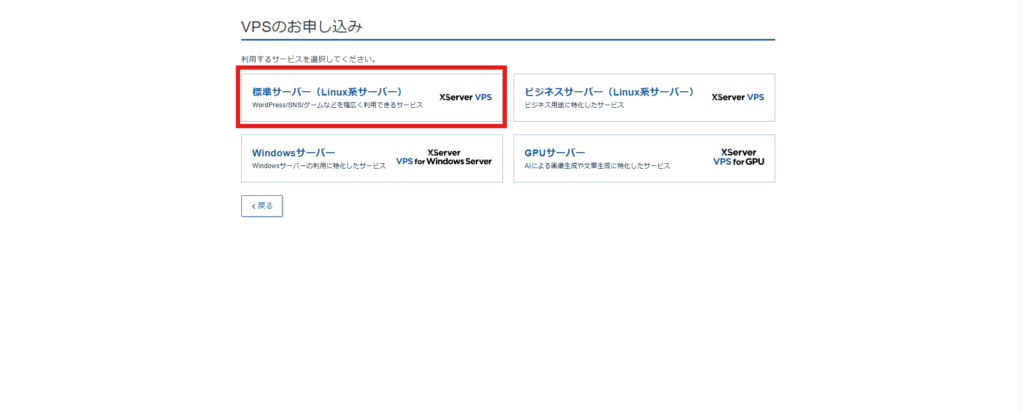
There are various server types, but you should select the "Standard Server (Linux Server)."
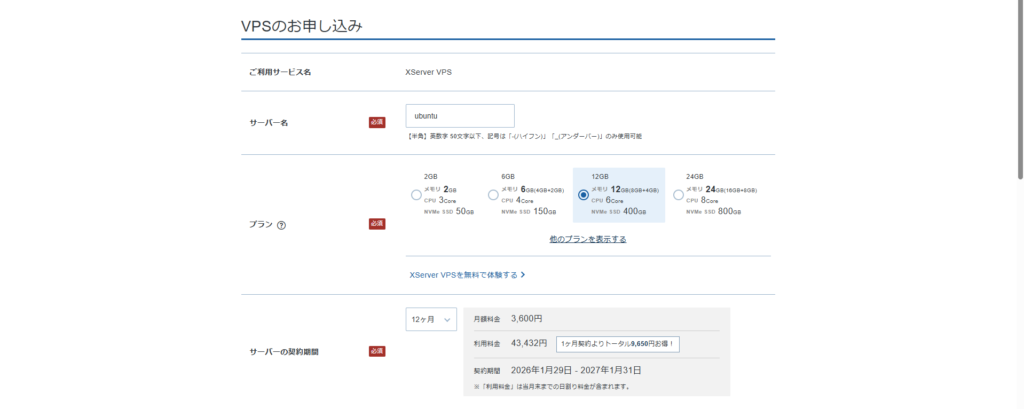
Server name: Any
Plan: Any (A low plan is fine at first)
Server contract period: We recommend about 3 months, but you can start from 1 month. The longer the contract period, the cheaper the installment plan will be.
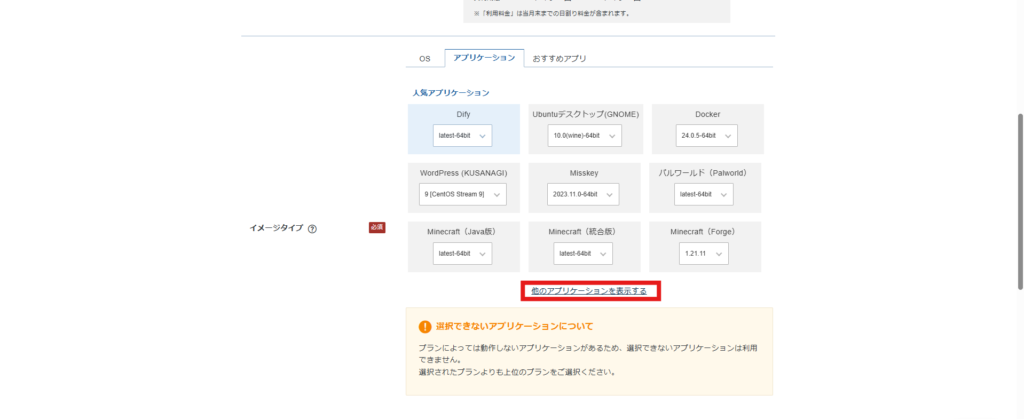
Next, for the image type, select the "Applications tab" and then select "Show other applications."
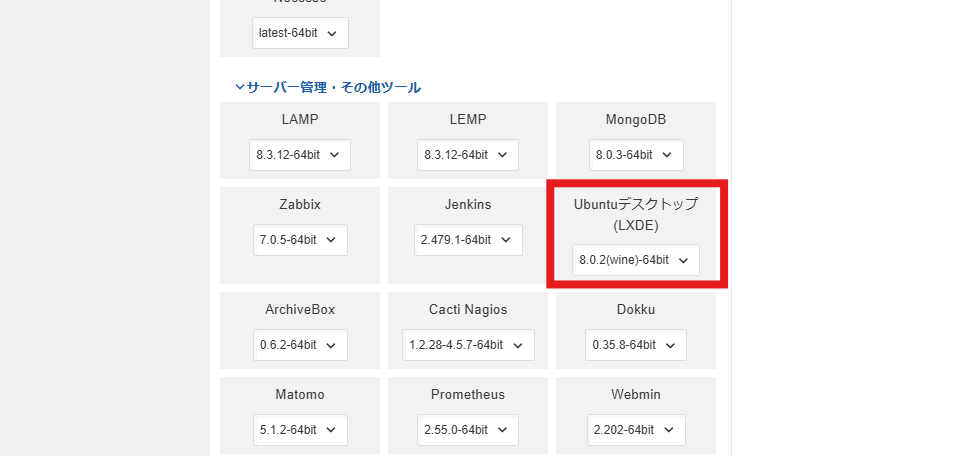
Then, you will see "Ubuntu Desktop (LXDE)" under Server Management and Other Tools, so select this this time
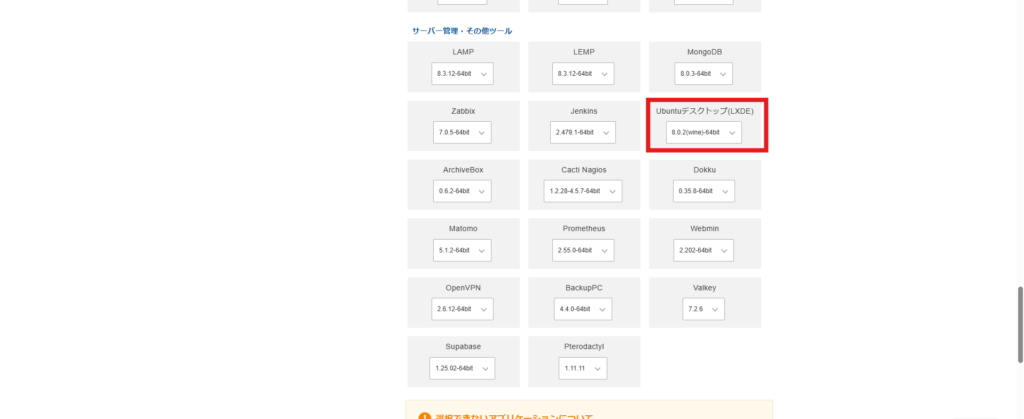
Root password: Any
SSH key: Any
Default port open: Use
If there are no issues, select Confirm application details
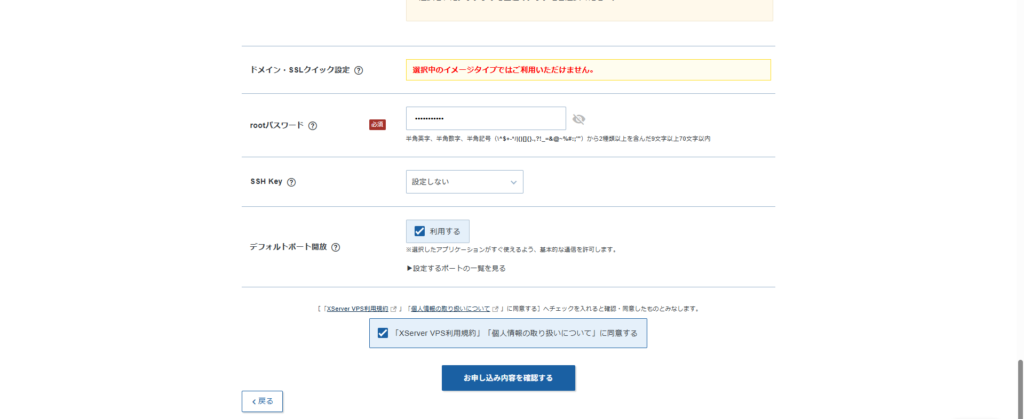
Once you have confirmed the details and made the payment, the setup will be complete.
It will take about 20 minutes for the XServer to actually be set up.
Once it is "Running", click Console > VNC Console

You should now be able to see the Ubuntu desktop (LXDE).
Your ID and password are listed in RDP-password.txt.
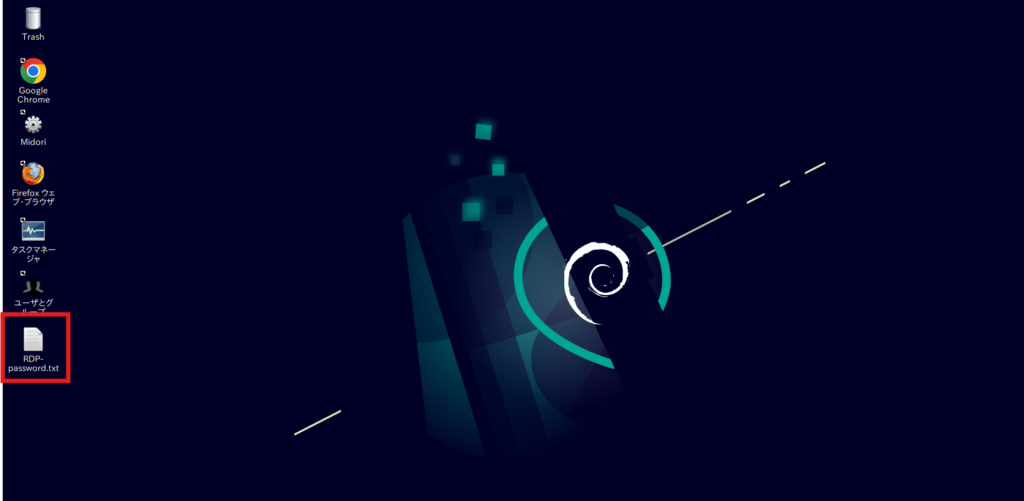
Making detailed settings
Once you've done this, you can enter various settings using commands
First, let's run the standard command
sudo apt update && sudo apt upgradeNext, add a user.
The original user will remain as is, and the new user will be used to log in from now on.
[username] should be any username
sudo adduser [username] sudo usermod -aG sudo [username]At this point, you should be able to log in with the user you created via RDP
Switch to LXQt
We want to use the newly added user to switch to LXQt, so be sure to log in with the user created above
First, install LXQt
sudo apt install lxqtRewrite .xsession to startlxqt
cat << 'EOF' > ~/.xsession #!/bin/sh setxkbmap -layout jp -model jp106 exec startlxqt EOFIf you don't have the permissions, add them
chmod +x ~/.xsessionNow restart xrdp and reconnect to RDP and it should be displayed in LXQt
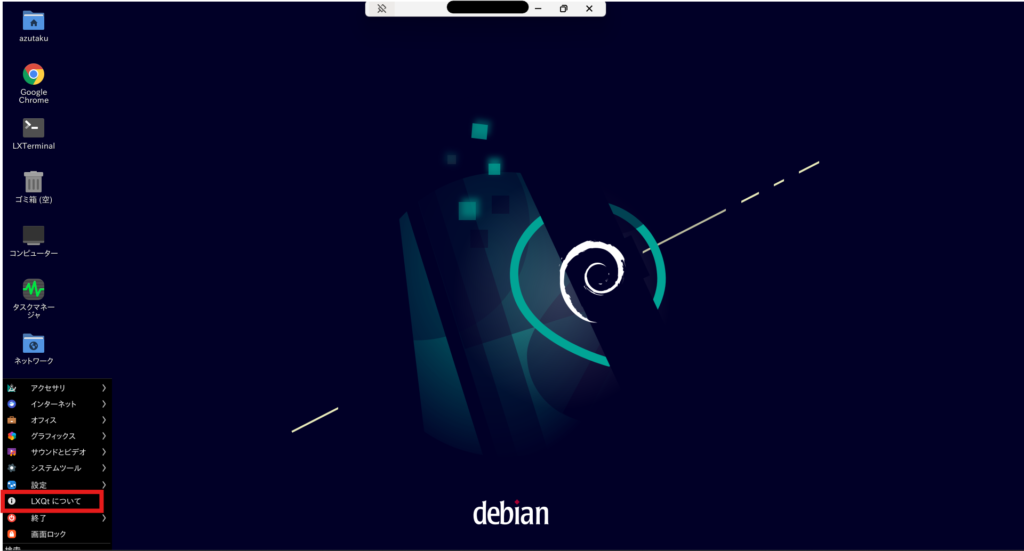
sudo systemctl restart xrdpYou will see a screen like this at first, but I think Openbox is fine. You can change it later if you want
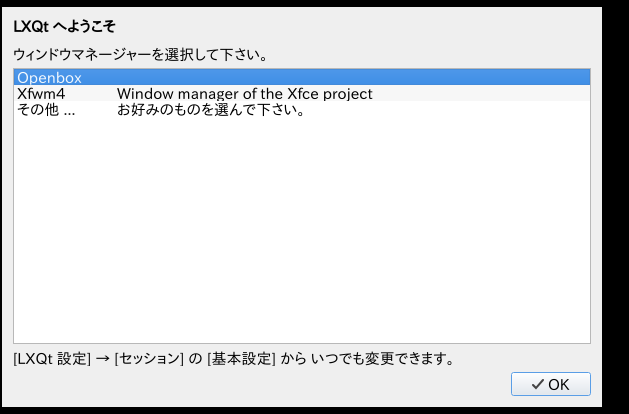
Now you have successfully changed to LXQt!
Please note that if you log in as the original user, you will still be using LXDE.
Optional settings
You don't have to do anything else after this, but I'll add any settings that I personally find interesting as I notice them.
I hope you'll find them useful if you encounter any problems.
Unable to connect via RDP
After using it for a few days, I encountered an issue where I couldn't connect unless I restarted the server.
Also, a screen lock-like issue occurred, so I deleted xscreensaver.
sudo apt purge xscreensaver systemctl --user mask xscreensaver.service systemctl --user mask xscreensaver.socketI'm not sure if this is the correct cause, but after a few days the connection is now working fine
I want to switch back to LXDE
If you want to go back to LXDE instead of LXQt, run the following command.
This should work fine unless you removed lxde.
cat << 'EOF' > ~/.xsession #!/bin/sh setxkbmap -layout jp -model jp106 exec startlxde EOF sudo systemctl restart xrdpsummary
With an XServer VPS, you can create a GUI environment simply by selecting the Ubuntu desktop (LXDE)
Although LXDE is still practical, I decided to switch to its successor, LXQt.
Since it only replaces the desktop environment, you can migrate with almost no changes to your existing configuration.
There is also GNOME as an XServer, but when using a GUI on a VPS, I found that a lightweight desktop environment such as LXDE/LXQt was more stable and easier to use

![[XServer VPS] The best solution for building a Kali Linux environment with Ubuntu Desktop x Distrobox](https://hack-lab-256.com/wp-content/uploads/2026/01/hack-lab-256-samnail-1-300x169.jpg)
![[Hacking] Install KALI LINUX into VirtualBox! Start an OS specializing in penetration testing!](https://hack-lab-256.com/wp-content/uploads/2022/03/hack-lab-256-samnail-2-300x169.jpg)